Interface Overview
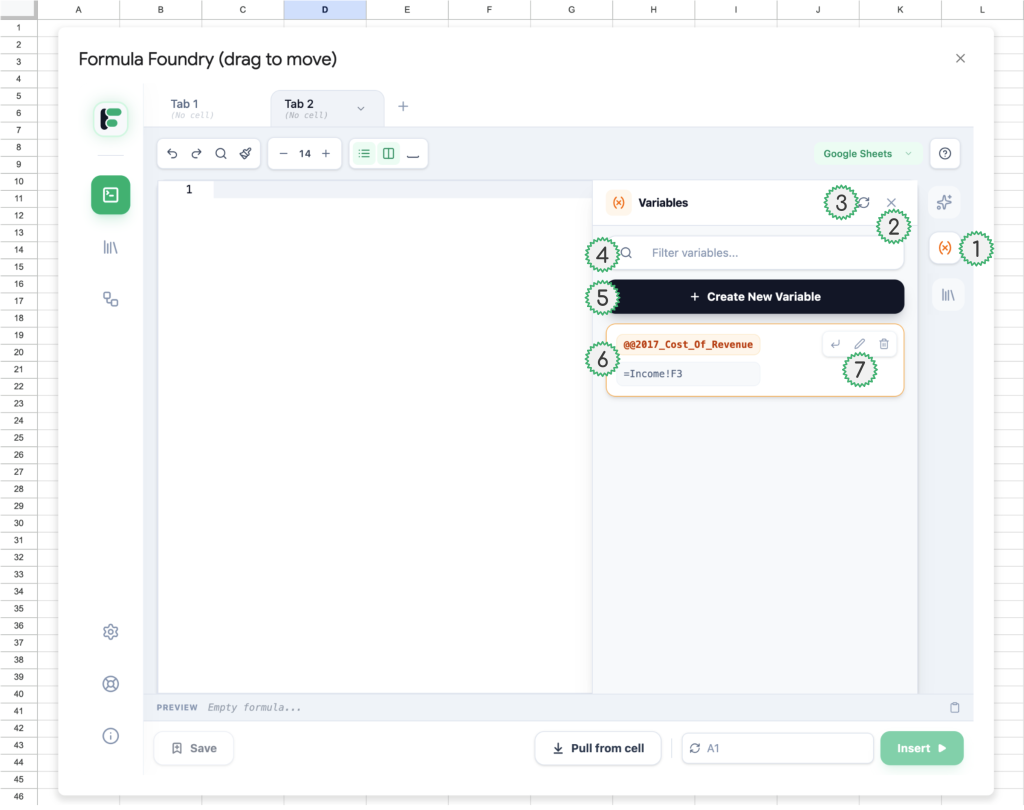
- Navigation to Variables feature within the Editor
- Button to close the Variables feature within the Editor
- Button to refresh list of user’s Variables (in the event a newly created variable is not appearing)
- Entry field to search for existing Variables
- Button to create a new Variable
- Example of an existing Variable
- Shows Variable name
- Shows preview of Variable’s value
- Variable actions shown on mouse-over of an existing Variable
- Insert Variable value into current tab of the Editor
- Edit existing Variable value
- Delete existing Variable
Creating or Editing a Variable
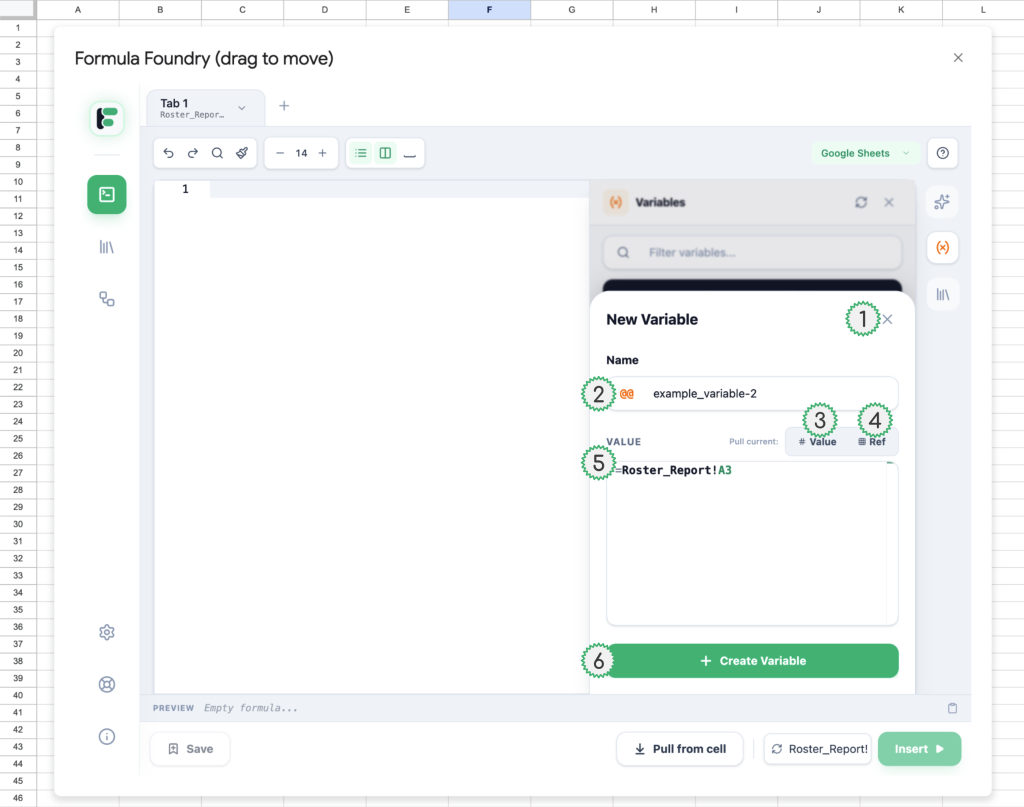
- Button to Close Variables feature
- Entry field to create or edit a Variable name (this pop-up’s title text changes to “Edit Variable” when working on an existing Variable)
- Button to pull the value of the cell currently selected in the Sheet
- Button to pull the reference (cell address) of the cell currently selected in the sheet
- Entry field to create or edit a Variable’s value
- Button to create or save edits to a Variable (this button’s action text changes to “Save Changes” when working on an existing Variable)
Using / adding Variables in-line, within the Editor
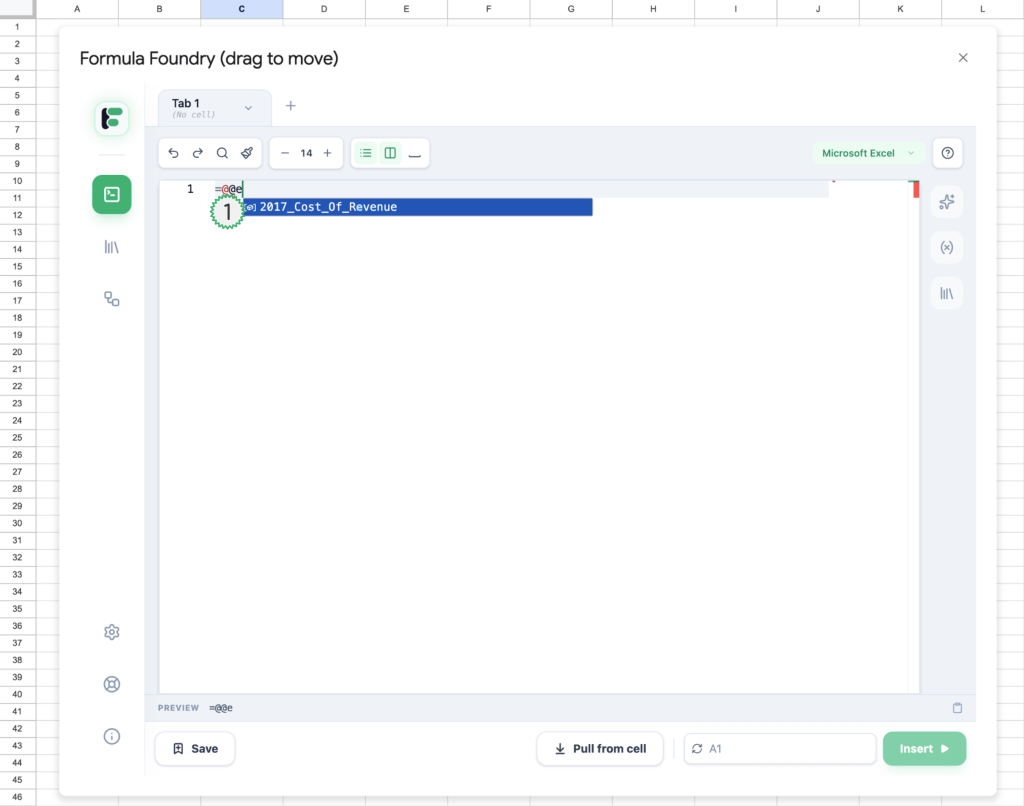
- Example of adding a Variable to the editor by using Formula Foundry’s variable syntax “@@”
- As the user starts to type the Variable’s name, any letter or combination of letter which is entered is used to narrow the results shown in the auto-complete menu which appears, to assist with adding a variable to the Editor
Was this article helpful?
Thanks for your feedback!