Snippets Overview (unpopulated library; no Snippets created by user yet)
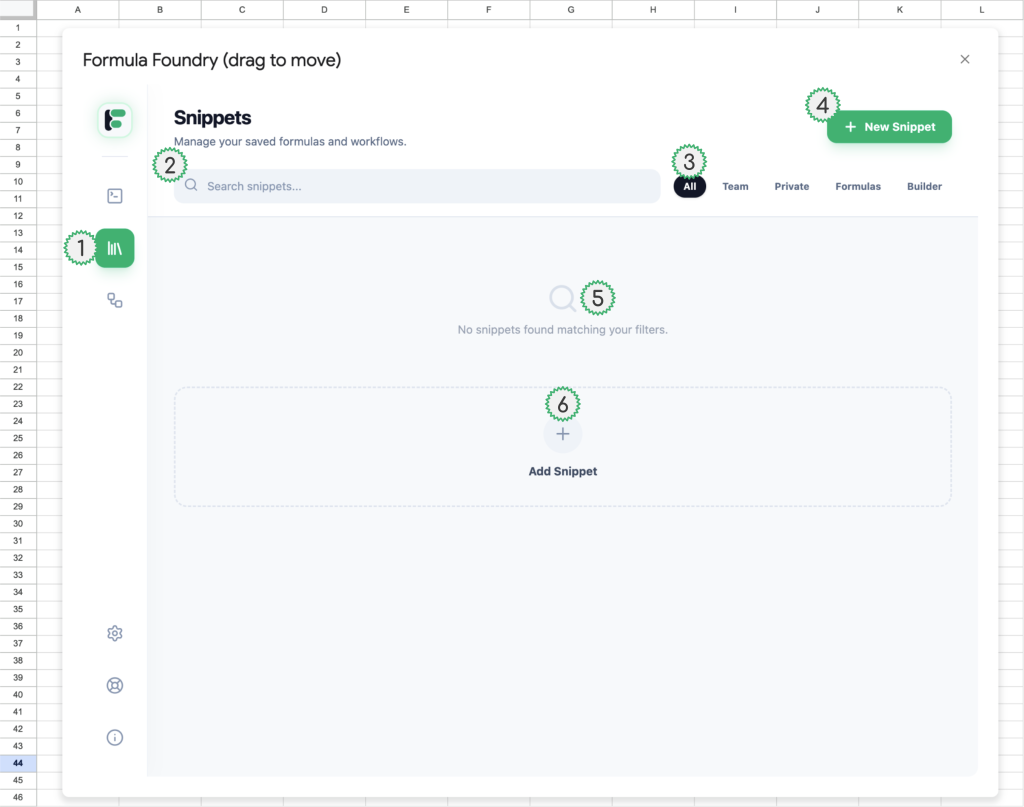
- Navigation to Snippets feature
- Entry field for searching Snippets by name
- Filters for displaying Snippets by shared parameters
- All (show all Snippets)
- Team (only show Snippets shared with team members)
- Private (only show Snippets NOT shared with team members)
- Formulas (only show Snippets for use in the Editor)
- Builder (only show Snippets for use in the Visual Formula Builder)
- Button to create a new Snippet
- Icon and text indicating no Snippets have been created by the user yet
- Button to create a new Snippet (only shows when user has not created any Snippets yet)
Snippets Overview (populated library; existing Snippets created by user)
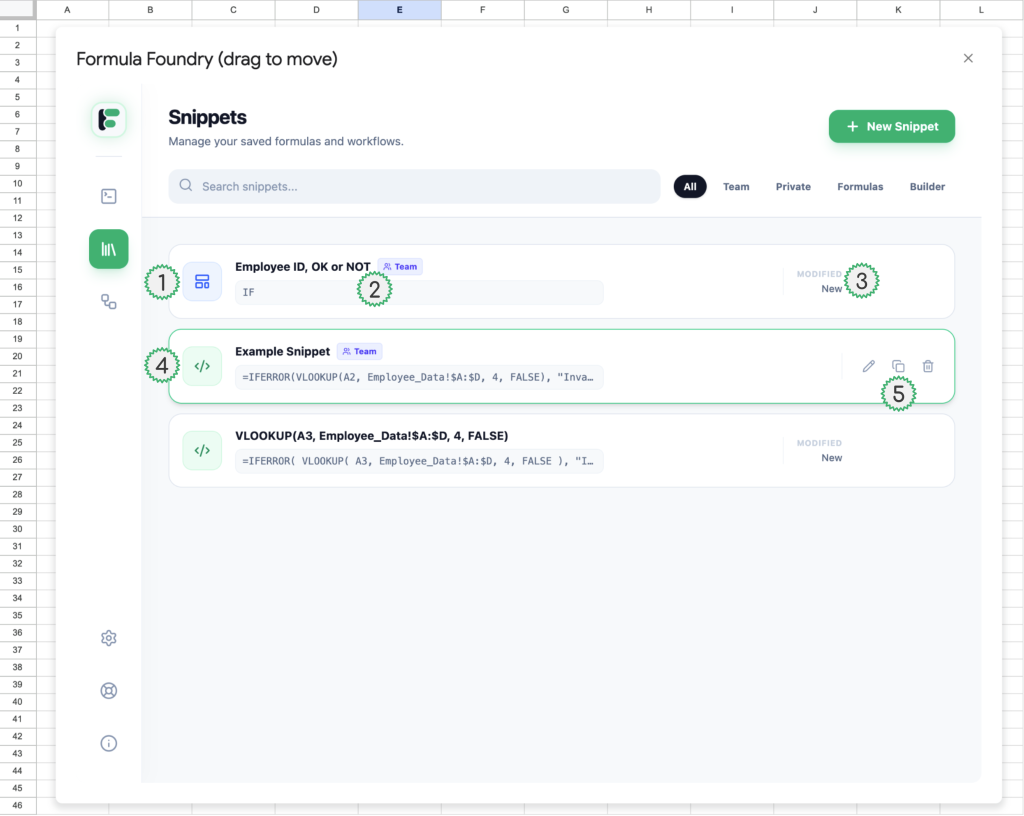
- Icon indicating Snippet is for use in the Visual Formula Builder
- Note: this is the appearance of a Snippet when it is NOT being moused-over by the user (example of a moused-over Snippet below – see #4)
- Snippet Details
- Snippet Name (in bold)
- Badge indicating this Snippet is shared with team members (not shown on Snippets which are private)
- Snippet preview (in the case of Snippets for use in the Visual Formula Builder, only the type of formula is shown – in this example it is an IF statement)
- Modified details (when the Snippet was last edited)
- Icon indicating this Snippet is for use in the Editor
- Note: this is the appearance of a Snippet when it is being moused-over by the user (a green hairline appears, and a drop-shadow)
- Snippet Action Options
- Edit (pen icon)
- Duplicate (copy icon)
- Delete (trash icon)
Creating and Editing Snippets
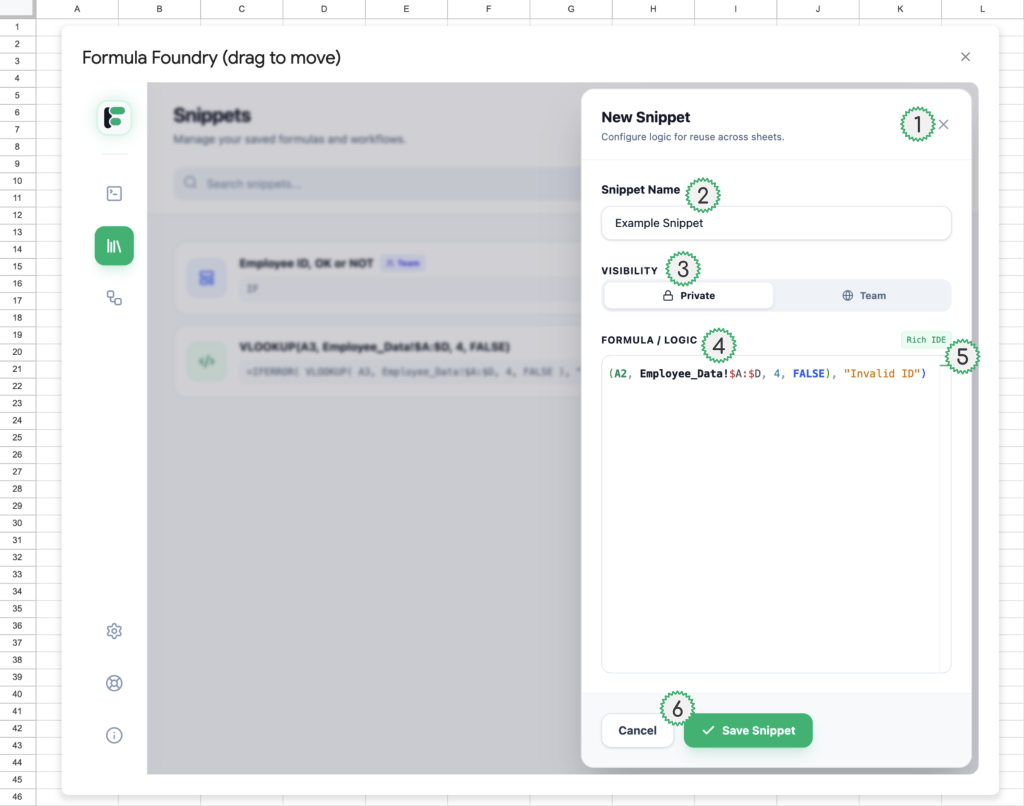
After clicking the button “+ New Snippet” this pop-up appears, with the following options:
- Close “New Snippet” pop-up
- Note: when editing a Snippet, this pop-up title changes to “Edit Snippet”
- Entry field to name or edit the name of a Snippet
- Sharing / Visibility Options
- Private (does NOT expose a Snippet to team members)
- Team (shares / expose a Snippet to team members)
- Formula / Logic entry field
- This is where users can write and/or edit the value of a new or existing Snippet
- Rich IDE badge indicates this field shares the same properties for creating and editing formula code as the Editor feature
- Save [or] Cancel
- Save Snippet will save a new Snippet, or save changes made to an existing Snippet
- Cancel will close the snippet pop-up, before before saving a new Snippet, or saving changes to an existing Snippet
Duplicating Snippets
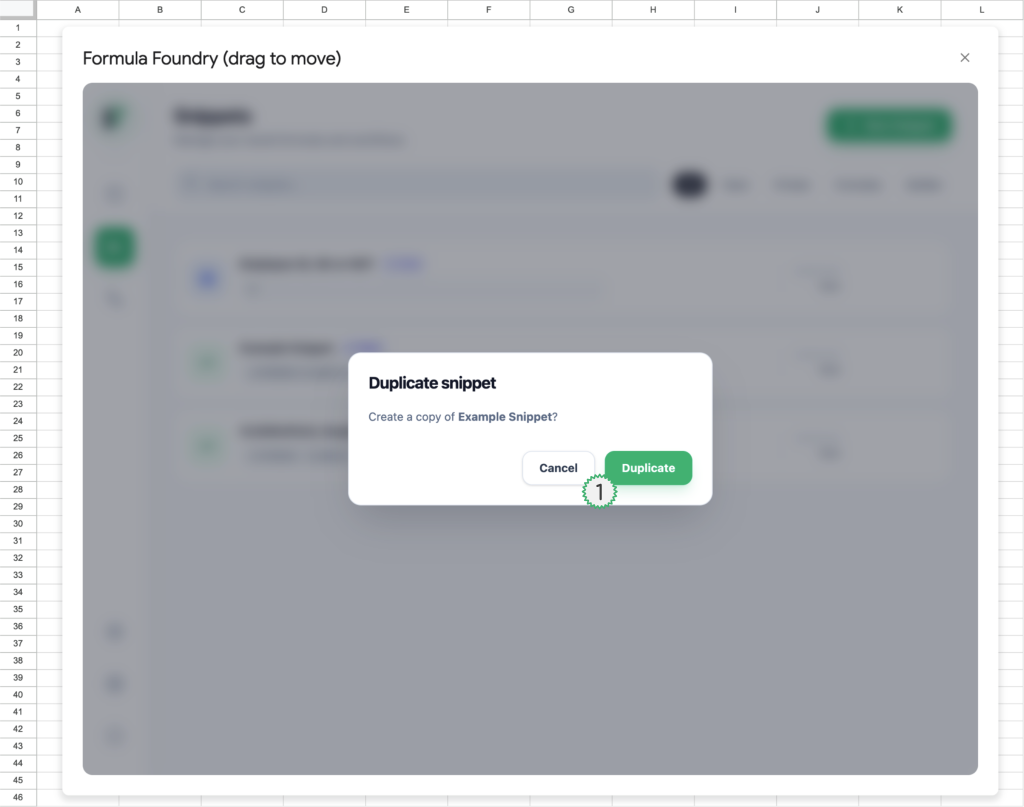
- When the Duplicate (copy icon) is clicked by a user, this pop-up appears to confirm or cancel duplication.
Using Snippets in the Editor
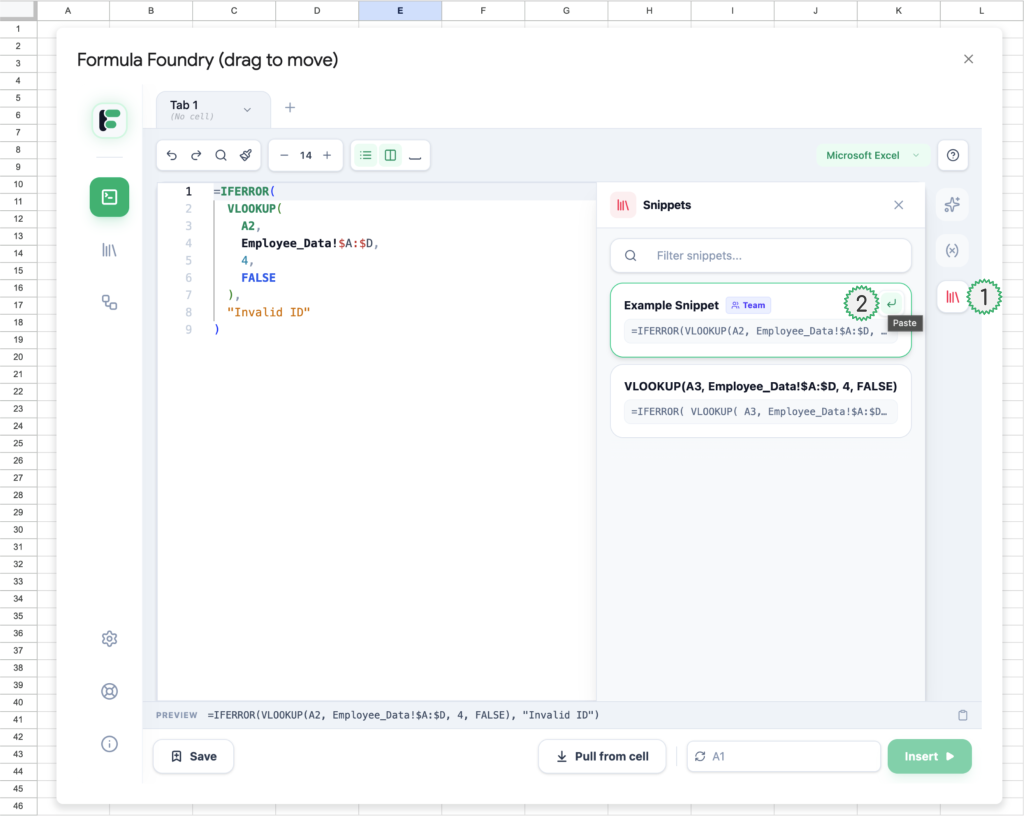
- Navigation to open the Editor tool
- Button to Paste (insert) the snippet selected into the currently selected Editor tab
Using Snippets in the Visual Formula Builder
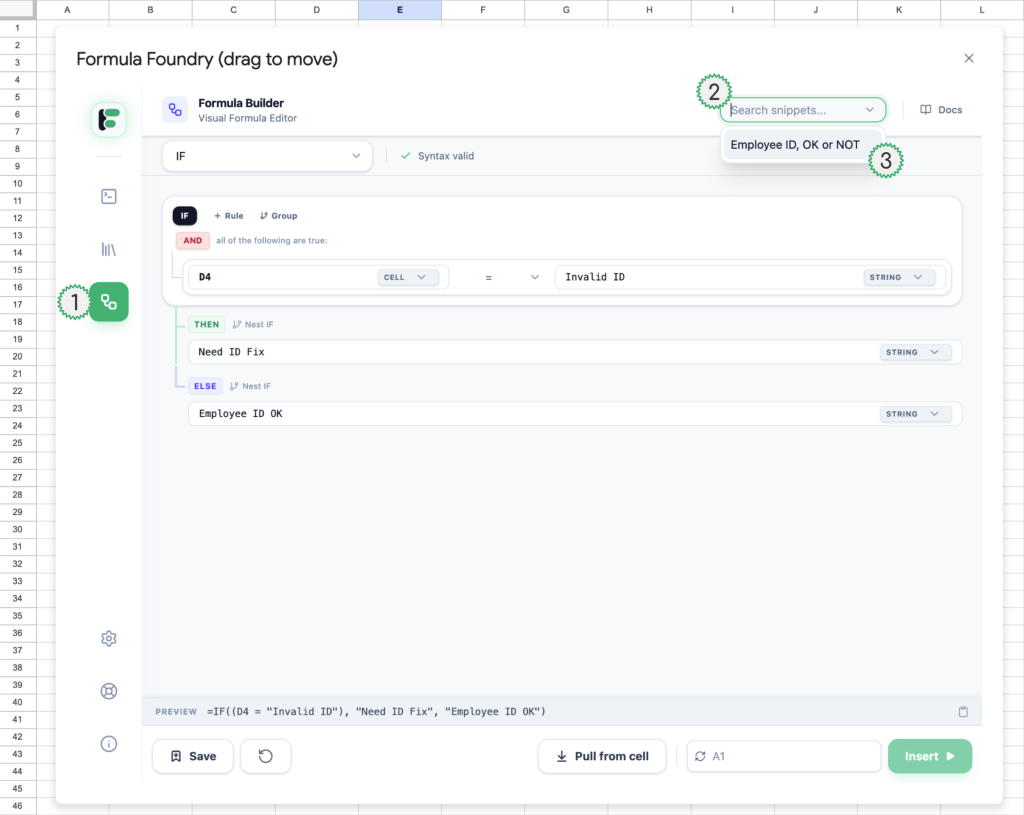
- Navigation to open the Visual Formula Builder tool
- Search Snippets (enter text to refine Snippets available for selection in the drop-down menu)
- Drop-down menu shows Snippets available for loading in the Visual Formula Builder tool
Was this article helpful?
Thanks for your feedback!