Interface Overview
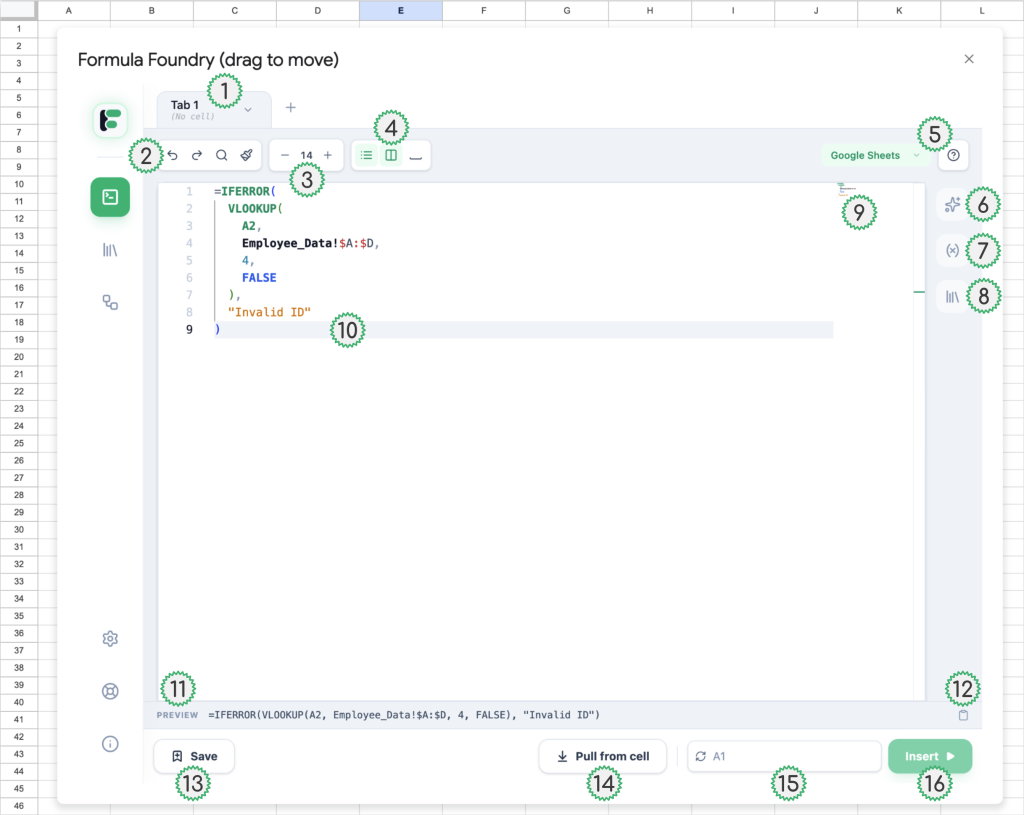
- Additional tabs can be created using the “+” symbol to the right of the open tabs.
Tab sub-name (in gray below the bold tab name) is auto-set whenever “Insert” is used, so that users know the most recent place that tabs code was pushed into the Sheet- Addition tab controls are used by clicking the downward pointing carrot symbol within the tab:

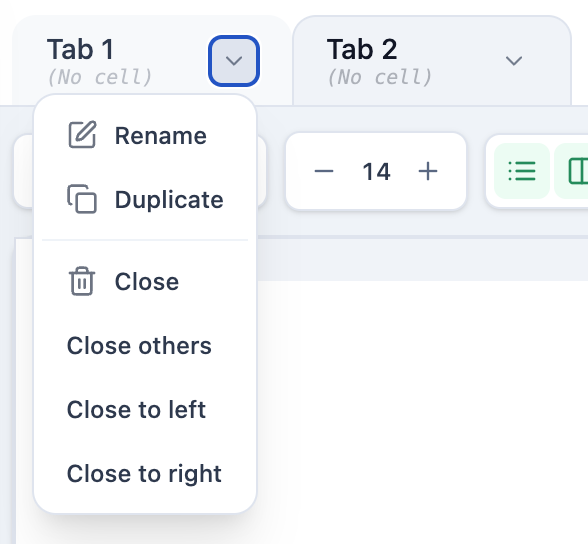
- Rename (selected tab)
- Duplicate (selected tab)
- Close (selected tab)
- Close others (close all tabs except selected tab)
- Close to left (close all tabs to the left of selected tab)
- Close to right (close all tabs to the right of selected tab)
- Addition tab controls are used by clicking the downward pointing carrot symbol within the tab:
- Basic Editor Tools, Section 1
- Undo
- Redo
- Find (text within current tab)
- Paste
- Basic Editor Tools, Section 2
- Increase text size
- Decrease text size
- Editor View Options
- Hide / Show number delineated rows
- Hide / Show minimap of code in editor
- Hide / Show bullet indication of spaces between text
- Excel Syntax Support dropdown
- Activate excel syntax support by selecting “Microsoft Excel” in dropdown
- Deactivate excel syntax support by selecting “Google Sheets” in dropdown
- “?” Click to see supported formulas by feature auto translation
- Open AI Assistant feature
- Open Variables feature
- Open Snippets feature
- Minimap of code in selected tab
- Selected row in Editor
- Preview of code in Editor (what would be pushed into a cell when using the “Insert” button)
- Copy code in Editor
- Save code in Editor as a Snippet
- Pull the contents of the currently selected cell in the Sheet into the Editor
- Currently selected cell in Sheet
- Displays the name of the cell currently synced with the Editor
- Sync (refresh icon) button updates which cell is currently selected in the sheet
- Insert Editor code (of the currently viewed tab) into the currently synced cell in the sheet
Was this article helpful?
Thanks for your feedback!